ORBITAL HARMONICS
Orbital Harmonics is a simulator that draws geometric patterns by watching two or more bodies orbit a central star and connecting them with lines. As the bodies move, those lines sweep out shapes — spirals, flowers, mandalas, and intricate webs — all emerging purely from the mathematics of motion.
You don't need to know anything about astronomy or geometry to enjoy it. Load a preset, hit Play, and watch a pattern build itself over time. When something looks interesting, pause it, save it, or experiment with the color controls to bring it to life in different ways.
This guide explains every control in the app, what it does, and what values you can set.
THE INTERFACE
The app is organized around a central canvas — the star system — flanked by two drawers that slide in from the left and right edges.
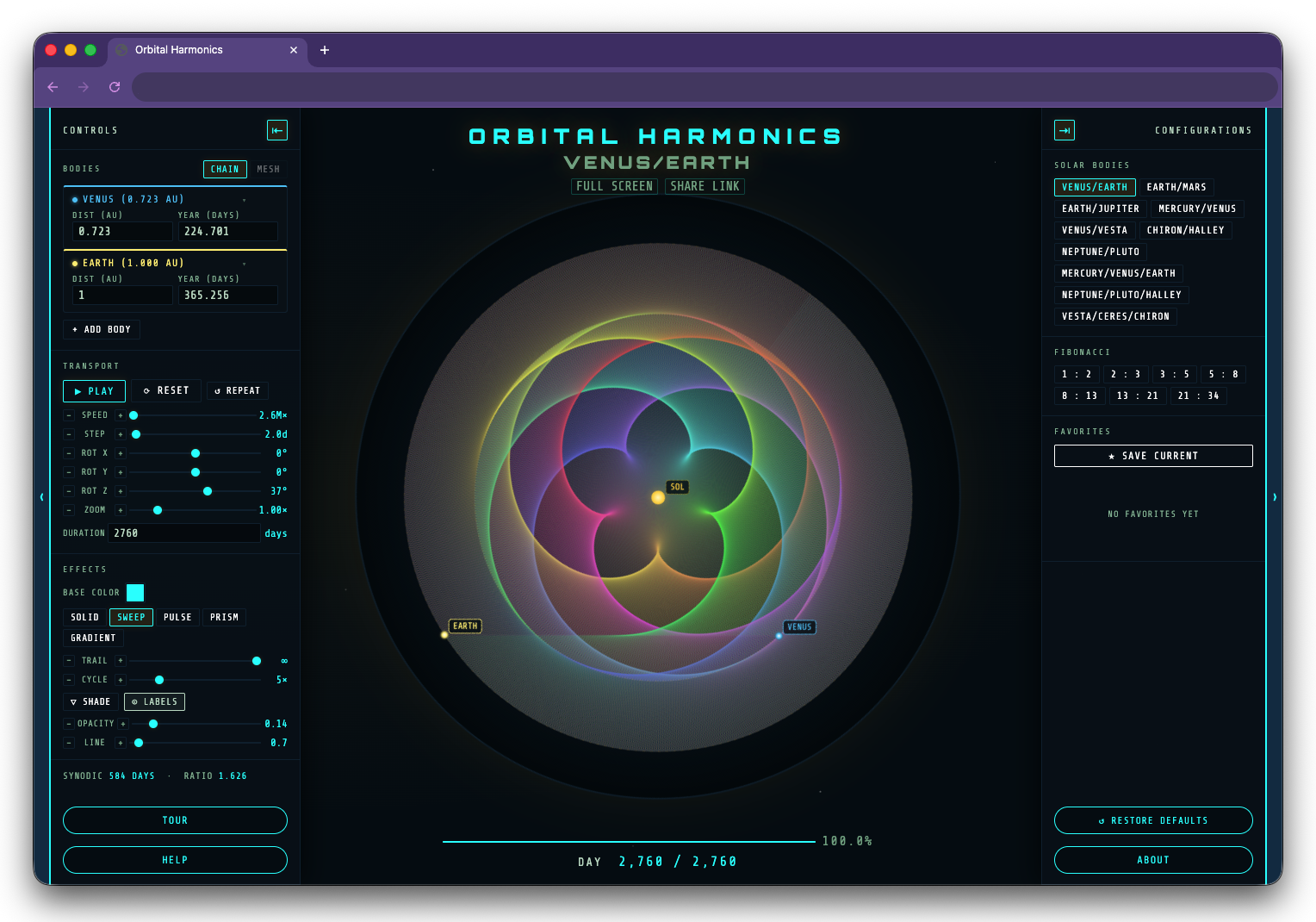
LEFT DRAWER — CONTROLS
Contains all simulation parameters: which bodies are orbiting, how fast time moves, and how lines are drawn. Hover or click the left strip to open it; click the strip again to close. Pin it open with the ⇤ button.
RIGHT DRAWER — CONFIGURATIONS
Contains preset groups, your saved favorites, and the Restore Defaults button. Hover or click the right strip to open it; click the strip again to close. Pin it open with the ⇥ button.
BOTTOM BAR
Shows the current DAY counter, and — when a Duration is set — a progress bar and percentage. Click the day counter at any moment to set that day as your stop point.
HEADER BUTTONS
Below the subtitle, two buttons sit centered at the top of the screen. FULL SCREEN expands the app to fill your display — the UI fades after a moment of inactivity and returns on mouse movement. SHARE LINK copies a URL to your clipboard that encodes all current settings; anyone with the link will open the app in exactly the state you shared.
LEFT DRAWER BOTTOM
TOUR launches the interactive guided tour. HELP opens this documentation page in a new tab.
RIGHT DRAWER BOTTOM
RESTORE DEFAULTS resets all settings to factory defaults (a confirmation step prevents accidents). ABOUT shows app information and contact details.
BODIES
Bodies are the objects orbiting the central star. Each body has two properties that control its orbit, and the relationship between all bodies is what creates the pattern.
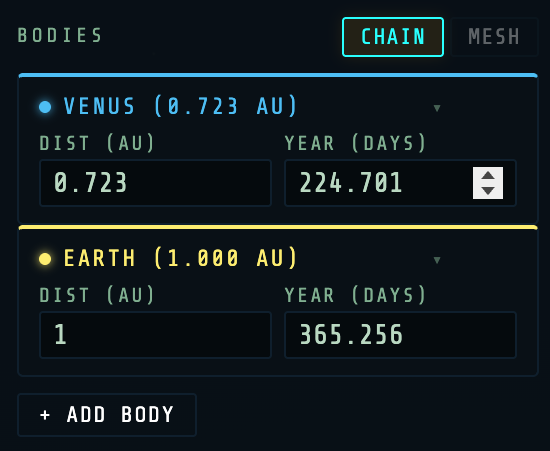
INPUT
The orbital distance from the star, in Astronomical Units (AU). Earth is 1.0 AU from the Sun. This value affects how large the orbit ring appears on screen, but does not affect the pattern shape — only the orbital period (ORBIT) determines the geometry.
INPUT
The orbital period in Earth days — how long this body takes to complete one full orbit. This is the number that actually drives the pattern. The ratio between two bodies' orbital periods determines the shape you'll see.
DROPDOWN
Choose a known solar system object to auto-fill its real-world distance and orbital period. Includes all major planets plus several dwarf planets, asteroids, and comets. Select CUSTOM to enter your own values.
BUTTON
Adds a third (or fourth, etc.) body to the simulation. Each additional body adds more lines and creates more complex patterns. The app automatically selects the next unused solar system body.
TOGGLE
Controls how bodies are connected with lines.
CHAIN — connects bodies in sequence: 1→2, 2→3, 3→1. Creates a closed loop. Default for two bodies.
MESH — connects every possible pair: 1→2, 1→3, 2→3, and so on. Creates much denser patterns. More useful with 4+ bodies.
BUTTON
Removes a body. The simulation requires a minimum of two bodies.
TRANSPORT
Transport controls how the simulation runs through time.
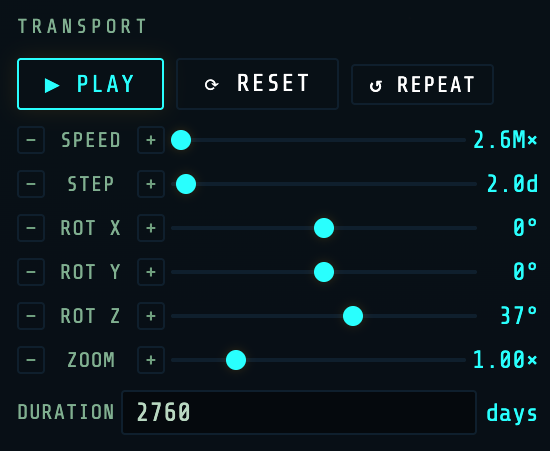
BUTTON
Starts and stops the simulation. The pattern continues building from where it left off when you resume.
BUTTON
Rewinds the simulation to Day 0 and clears the pattern canvas. The bodies return to their starting positions.
TOGGLE
When enabled and a Duration is set, the simulation automatically resets and replays when it reaches the end. Great for watching a pattern build and clear on a loop.
How fast simulated time flows. At higher speeds the pattern builds quickly; at lower speeds you can watch individual lines being drawn. The display shows the multiplier in units of millions of times real-time (e.g. 5.2M× means the sim runs 5.2 million times faster than reality).
The time resolution of the simulation in days per calculation step. Smaller values produce smoother, more detailed curves. Larger values run faster but may produce angular or jagged lines. For outer planets with very long periods, a larger step is needed to keep the sim performant.
INPUT
An optional stop day. When set, the simulation halts at this day and the progress bar becomes visible. Leave blank (∞) to run indefinitely. Click the DURATION label to clear it. Click the day counter at any moment while running to snap the duration to that exact day.
Tilts the canvas forward and backward, giving a perspective effect as if viewing the orbital plane from an angle. At 0° you're looking straight down at the orbital plane.
Tilts the canvas left and right.
Rotates the canvas clockwise or counterclockwise on the flat plane. Purely cosmetic — it doesn't change the pattern, only its orientation. You can also drag the canvas while holding Shift to adjust this live.
Scales the canvas view in or out. Does not affect the simulation — it's a purely visual zoom. Also controllable via the scroll wheel directly on the canvas.
EFFECTS
The Effects section controls how the pattern lines are colored and drawn. It combines a base color with a color mode that determines how that color evolves over time or along each line.
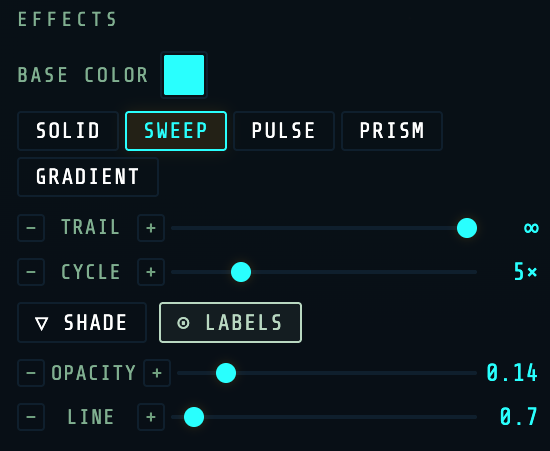
COLOR PICKER
The starting hue used by all color modes. Click the color swatch to open the color picker. Click the BASE COLOR label to reset to the default teal (#00FFFF).
COLOR MODES
Color modes determine how lines are colored. Only one mode can be active at a time.
Every line is drawn in the BASE color. Clean, simple, and useful when you want the geometry to speak for itself.
The hue rotates through the color wheel over time. Each moment in the simulation has a different hue, so the pattern accumulates as a rainbow. Default mode.
The hue oscillates back and forth rather than sweeping continuously, creating a pulsing wave effect across the pattern.
A non-uniform rainbow — hue accelerates through some color ranges and slows through others, producing an uneven, gem-like spectrum.
Each individual line is drawn as a spectrum gradient from endpoint to endpoint. BASE sets the starting hue; CYCLE controls how many full spectrum repeats appear along each line.
How long lines persist before fading. At maximum (∞), lines never fade and the pattern accumulates indefinitely. Lower values cause older lines to fade away, leaving only a recent trace. Shorter trails emphasize the current moment; longer trails reveal the full pattern.
Controls the speed or density of the color effect, depending on the active mode. In SWEEP/PULSE/PRISM, higher values cause colors to cycle faster over time. In GRADIENT mode, CYCLE sets the number of full spectrum repetitions along each line — 1× means one full rainbow per line, 5× means five rainbows.
The transparency of each individual line stroke. Lower opacity means each line is nearly invisible on its own, but overlapping lines build up into bright, dense regions — which is where the interesting pattern shapes emerge. Higher opacity makes lines bolder and more immediate.
The thickness of each line stroke in pixels. Thin lines (near 0.5) create delicate, hair-fine patterns. Thicker lines (toward 5.0) create bolder, more painterly effects — especially interesting when combined with low OPACITY.
MODIFIERS
Modifiers are toggles that can be combined with any color mode to add additional visual effects.
TOGGLE
Adds a brightness gradient along each line. The first half of every line is drawn at full brightness; the second half fades from full color down to pure black. The number of fade cycles per line is controlled by the CYCLE slider — at CYCLE 1×, one fade per line; at CYCLE 5×, five fades per line.
SHADE works with all color modes. In GRADIENT mode, the brightness fades through the spectrum itself. In other modes, the current line color fades to black.
The effect is most dramatic at low TRAIL values and higher CYCLE counts.
TOGGLE
Shows the name of each body on the canvas next to its moving dot. Labels counter-rotate with the Z-axis so they always remain readable regardless of canvas rotation. Useful for understanding which body is which; often turned off for cleaner final patterns.
CONFIGURATIONS
The right drawer manages preset configurations and your personal favorites. All your settings — bodies, color, transport, rotation, zoom — are captured and restored as a complete snapshot.
BUTTON
Resets all settings back to factory defaults and reloads the Venus/Earth preset. Your saved favorites are never affected. A confirmation step prevents accidental resets.
BUTTON
Shows a brief description of the app, privacy and data information, and contact details.
SOLAR BODY PRESETS
These presets use real planetary data from our solar system. Each is tuned with appropriate speed, step, and duration settings to show a complete or representative pattern in a reasonable time.
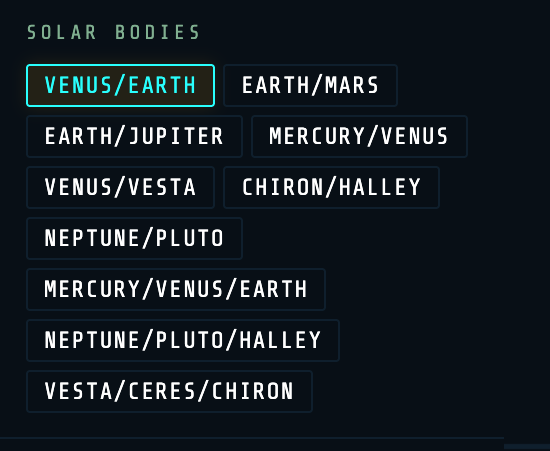
| PRESET | BODIES | NOTABLE PATTERN |
|---|---|---|
| VENUS/EARTH | Venus (224.7d) + Earth (365.3d) | The famous 5-petal rose. Their 8:13 Fibonacci resonance creates one of the most elegant patterns in the solar system. |
| EARTH/MARS | Earth (365.3d) + Mars (687.0d) | A slower, looping pattern reflecting the 2-year synodic rhythm of Earth-Mars conjunctions. |
| EARTH/JUPITER | Earth (365.3d) + Jupiter (4332.6d) | Jupiter's massive 11.9-year orbit creates an intricate star-like pattern with many points. |
| MERCURY/VENUS | Mercury (88.0d) + Venus (224.7d) | Fast-moving inner planets create a dense, rapidly evolving pattern. |
| VENUS/VESTA | Venus (224.7d) + Vesta (1325.0d) | An asteroid belt body creates a slower, more open geometric form. |
| CHIRON/HALLEY | Chiron (18,445d) + Halley's Comet (27,379d) | Two outer cometary bodies with very long periods. The pattern unfolds over hundreds of thousands of simulated days. |
| NEPTUNE/PLUTO | Neptune (60,182d) + Pluto (90,560d) | The famous 3:2 orbital resonance of the outer solar system, producing a simple 2-lobed figure. |
| MERCURY/VENUS/EARTH | Three inner planets | Three-body pattern showing the interplay of the three innermost worlds. Uses CHAIN mode. |
| NEPTUNE/PLUTO/HALLEY | Three outer bodies | Complex three-body pattern at the outer edges of the solar system. |
| VESTA/CERES/CHIRON | Three asteroid belt + centaur bodies | Three mid-to-outer system bodies creating a rich, dense pattern. |
FIBONACCI PRESETS
These presets use custom orbital periods set to exact Fibonacci number ratios. They are designed to demonstrate a beautiful mathematical relationship: the number of petals in the pattern equals the absolute difference between the two Fibonacci numbers in the ratio.
The Fibonacci sequence is 1, 1, 2, 3, 5, 8, 13, 21, 34… Each number is the sum of the two before it. When two orbiting bodies have periods in a Fibonacci ratio, the resulting pattern has a petal count equal to |p − q|, which is always the previous Fibonacci number.
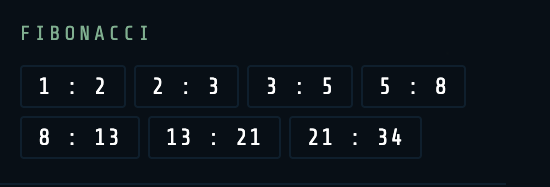
| PRESET | PERIODS | RATIO | PETALS |
|---|---|---|---|
| 1 : 2 | 100d / 200d | 1:2 | 1 |2−1| |
| 2 : 3 | 200d / 300d | 2:3 | 1 |3−2| |
| 3 : 5 | 300d / 500d | 3:5 | 2 |5−3| |
| 5 : 8 | 500d / 800d | 5:8 | 3 |8−5| |
| 8 : 13 | 80d / 130d | 8:13 | 5 |13−8| |
| 13 : 21 | 130d / 210d | 13:21 | 8 |21−13| |
| 21 : 34 | 210d / 340d | 21:34 | 13 |34−21| |
FAVORITES
Favorites let you save any configuration — bodies, color mode, transport settings, rotation — as a named snapshot you can return to at any time.
BUTTON
Saves a complete snapshot of all current settings as a new favorite. It will appear in the list below with a default name like "Favorite 1".
BUTTON
Restores all settings from the saved favorite and begins playing automatically.
TEXT FIELD
Double-click a favorite's name to rename it. Press Enter or click elsewhere to save the new name.
BUTTON
Permanently removes the saved favorite. This cannot be undone.
CANVAS INTERACTION
The canvas itself is interactive — you can rotate and tilt the view in 3D using only your mouse or touch.
Click and drag on the canvas to tilt the view. Dragging left/right adjusts ROT Y; dragging up/down adjusts ROT X. This gives a perspective effect as if viewing the orbital plane from different angles.
Hold Shift while dragging to rotate on the Z axis (spinning the view flat). This is the same as the ROT Z slider.
Scroll up to zoom in, scroll down to zoom out. This is the same as the ZOOM slider in the Transport section.
Double-click anywhere on the canvas to instantly reset all three rotation axes (ROT X, ROT Y, ROT Z) and ZOOM to their defaults.
Click the DAY counter at the bottom of the screen at any point during the simulation to set that day as the Duration stop point. Useful for capturing a pattern at exactly the moment it looks perfect.
THE MATH (SIMPLY PUT)
You don't need to understand the math to use the app — but if you're curious, here's what's actually happening.
WHY DO PATTERNS FORM?
Each body travels around the star at a fixed speed. At every moment in time, a line is drawn connecting the bodies. As time progresses, those lines accumulate into a pattern. The shape of that pattern is entirely determined by the ratio of the orbital periods.
THE RATIO RULE
If the ratio of two periods simplifies to p : q in lowest terms, the resulting pattern has |p − q| petals or lobes. For example:
Venus (224.7 days) and Earth (365.3 days) have a ratio very close to 8 : 13. Since |13 − 8| = 5, the pattern has 5 petals — the famous Venus/Earth rose.
Neptune (60,182 days) and Pluto (90,560 days) have a ratio close to 3 : 2. Since |3 − 2| = 1... wait, that would be 1 lobe. Actually this is a 2-lobed figure because the geometry of 3:2 creates two loops. The formula is a useful guide, but complex ratios can surprise you — experimentation is the best teacher.
FIBONACCI AND THE GOLDEN RATIO
The Fibonacci sequence (1, 1, 2, 3, 5, 8, 13, 21…) produces particularly beautiful patterns because consecutive Fibonacci numbers have a ratio that approaches the Golden Ratio (≈1.618). Patterns at Fibonacci ratios close exactly, producing clean symmetric flowers with petal counts that are themselves Fibonacci numbers. This is why Venus and Earth — whose periods happen to be in near-perfect 8:13 Fibonacci resonance — produce such a famously beautiful pattern.
ORBITAL DISTANCE AND PATTERN SHAPE
The AU (distance) values do not affect the pattern shape. They only determine how large the orbit rings appear on screen. The pattern is driven entirely by the orbital periods.